

1. What is a Keyboard?
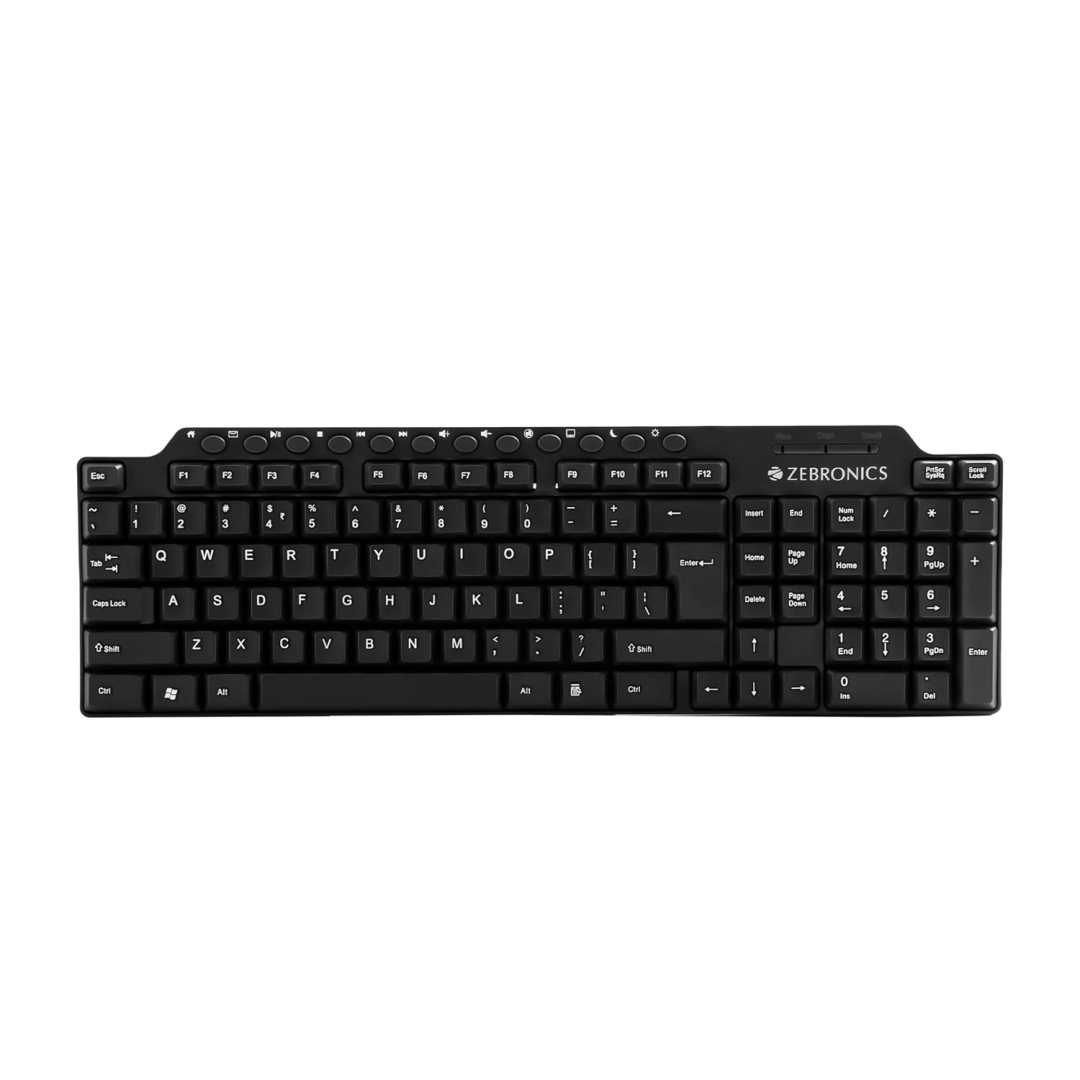
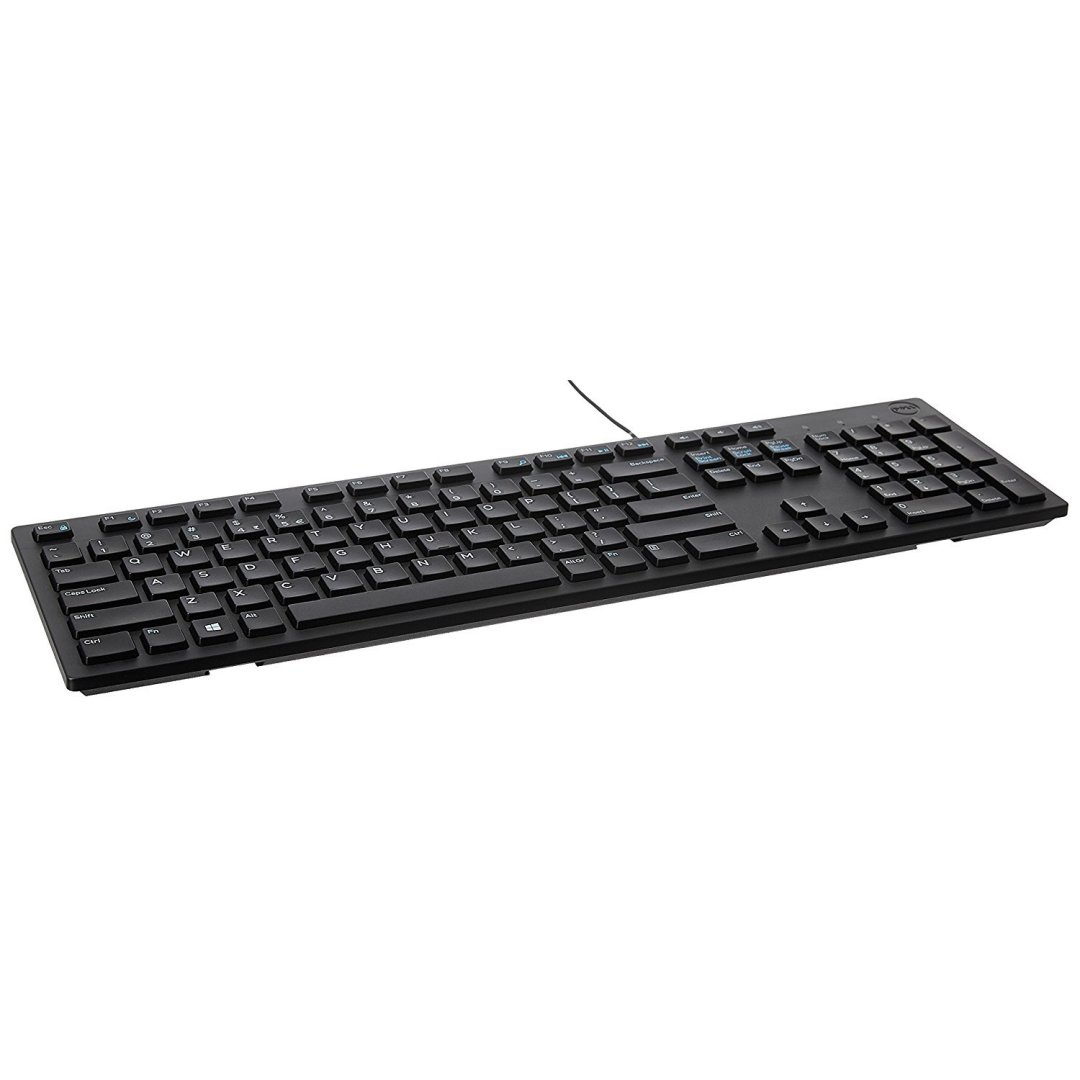
A keyboard is an input device used to enter data, commands, and characters into a computer or other electronic devices. It consists of multiple keys arranged in a specific layout, allowing users to type text, navigate interfaces, and execute commands.
Functions of a Keyboard:
- Text Input: Used for typing letters, numbers, and symbols.
- Navigation: Arrow keys, function keys, and shortcuts help move within applications.
- Command Execution: Shortcut keys perform specific actions (e.g., Ctrl + C for copy).
- Gaming and Multimedia Control: Some keyboards include specialized keys for gaming and media playback.

2. Types of Keyboards
Keyboards are categorized based on their layout, design, and usage.
Based on Layout:
- QWERTY Keyboard – Most common layout worldwide.
- AZERTY Keyboard – Used in France and Belgium.
- DVORAK Keyboard – Designed for faster typing with a different letter arrangement.
Based on Connectivity:
- Wired Keyboard – Connected via USB or PS/2 port.
- Wireless Keyboard – Uses Bluetooth or RF (Radio Frequency) technology.
Based on Design and Purpose:
- Mechanical Keyboard – Uses mechanical switches for durability and better tactile feedback.
- Membrane Keyboard – Soft, pressure-sensitive keys (cheaper and quieter).
- Ergonomic Keyboard – Designed for comfortable hand positioning to reduce strain.
- Gaming Keyboard – Includes RGB lighting, macro keys, and anti-ghosting features.
- Multimedia Keyboard – Additional keys for volume control, media playback, and quick access to apps.
- Virtual Keyboard – On-screen keyboard used on touchscreen devices.
- Projection Keyboard – Uses laser projection technology for typing on a flat surface.
- Foldable Keyboard – Portable keyboard that can be folded for convenience.
- Chiclet Keyboard – Flat, widely spaced keys commonly found on laptops.
- Braille Keyboard – Designed for visually impaired users with raised dots.
3. Most Frequently Used Keyboards
- QWERTY Keyboard (Standard for English typing and globally used in most computers and laptops.)
- Mechanical Keyboards (Popular among gamers and professionals due to durability.)
- Membrane Keyboards (Common in offices and budget-friendly setups.)
- Wireless Keyboards (Preferred for convenience and mobility.)
4. Details of Each and Every Key on a Keyboard
1. Alphabet Keys (A-Z)
- Used for typing letters and text input.
2. Number Keys (0-9)
- Located at the top row and on the numeric keypad.
- Used for entering numerical data.
3. Function Keys (F1-F12)
- F1: Help menu in applications.
- F2: Rename files and folders.
- F3: Search function.
- F4: Alt + F4 closes the active window.
- F5: Refreshes the current window/page.
- F6: Moves cursor to address bar in browsers.
- F7: Spell check in MS Word.
- F8: Used for boot menu in Windows.
- F9: Refreshes document in MS Word.
- F10: Activates menu bar in applications.
- F11: Full-screen mode in browsers.
- F12: Opens developer tools in browsers.
4. Special Character Keys
@(At symbol) – Used in email addresses.#(Hash) – Used for hashtags and numbers.$(Dollar) – Currency symbol.&(Ampersand) – Logical AND operator.*(Asterisk) – Used for multiplication or bullet points.(and)– Parentheses for grouping expressions.
5. Modifier Keys
- Shift: Used to type uppercase letters and symbols.
- Caps Lock: Toggles uppercase letter typing.
- Ctrl (Control): Used for shortcuts (e.g., Ctrl + C to copy).
- Alt (Alternate): Used for alternate functions and shortcuts.
- AltGr (Alternate Graphic): Provides additional symbols on some keyboards.
- Windows Key: Opens the Start menu in Windows.
- Command (⌘) Key: Used on macOS for shortcuts.
6. Navigation Keys
- Arrow Keys (↑ ↓ ← →): Used for cursor movement and navigation.
- Home: Moves cursor to the beginning of a line.
- End: Moves cursor to the end of a line.
- Page Up/Page Down: Scrolls one screen up/down.
7. Editing Keys
- Backspace: Deletes characters to the left of the cursor.
- Delete: Removes characters to the right of the cursor.
- Insert: Toggles between insert and overwrite mode.
8. Escape Key (Esc)
- Cancels ongoing processes and closes dialog boxes.
9. Numeric Keypad (For quick number entry)
- Includes numbers (0-9), arithmetic operators (+, -, *, /), and Enter key.
10. Spacebar
- Inserts a space between words.
11. Enter (Return) Key
- Confirms commands and moves to the next line in text editors.
12. Tab Key
- Moves cursor to the next tab stop or field.
13. Print Screen (PrtScn)
- Captures a screenshot of the screen.
14. Scroll Lock (ScrLk)
- Used in older systems to control scrolling behavior.
15. Pause/Break Key
- Used in older computers to pause command execution.
16. Multimedia Keys (On specific keyboards)
- Play/Pause: Controls media playback.
- Volume Up/Down: Adjusts volume.
- Mute: Mutes the audio.
- Next/Previous Track: Skips media tracks.
17. Shortcut Key Combinations
- Ctrl + C: Copy
- Ctrl + V: Paste
- Ctrl + X: Cut
- Ctrl + Z: Undo
- Ctrl + A: Select all
- Ctrl + S: Save
- Ctrl + P: Print
- Alt + Tab: Switch between open applications
- Windows + D: Show desktop
Conclusion
A keyboard is an essential input device for computers and digital devices. Understanding different types of keyboards and their keys’ functionalities enhances efficiency in typing, navigation, and performing various tasks. Whether for typing, gaming, or professional work, choosing the right keyboard can improve overall productivity and comfort.


कीबोर्ड: एक संपूर्ण गाइड
1. कीबोर्ड क्या है?
कीबोर्ड एक इनपुट डिवाइस है जिसका उपयोग कंप्यूटर या अन्य इलेक्ट्रॉनिक उपकरणों में डेटा, कमांड और अक्षरों को दर्ज करने के लिए किया जाता है। इसमें कई कुंजियाँ (Keys) होती हैं जो एक विशेष लेआउट में व्यवस्थित होती हैं, जिससे उपयोगकर्ता टेक्स्ट टाइप कर सकते हैं, इंटरफेस को नेविगेट कर सकते हैं और विभिन्न कमांड निष्पादित कर सकते हैं।
कीबोर्ड के मुख्य कार्य:
- टेक्स्ट इनपुट: अक्षरों, संख्याओं और प्रतीकों को टाइप करने के लिए।
- नेविगेशन: एरो कीज, फंक्शन कीज और शॉर्टकट्स की मदद से नेविगेशन करना।
- कमांड निष्पादन: शॉर्टकट कीज से विशेष कार्य करना (जैसे, Ctrl + C से कॉपी करना)।
- गेमिंग और मल्टीमीडिया नियंत्रण: कुछ कीबोर्ड में विशेष गेमिंग और मीडिया नियंत्रण कुंजियाँ होती हैं।
2. कीबोर्ड के प्रकार
कीबोर्ड को उनके लेआउट, डिजाइन और उपयोग के आधार पर वर्गीकृत किया जाता है।
लेआउट के आधार पर:
- QWERTY कीबोर्ड – सबसे आम लेआउट।
- AZERTY कीबोर्ड – फ्रांस और बेल्जियम में प्रचलित।
- DVORAK कीबोर्ड – तेज़ टाइपिंग के लिए विशेष रूप से डिज़ाइन किया गया।
कनेक्टिविटी के आधार पर:
- वायर्ड कीबोर्ड – USB या PS/2 पोर्ट से जुड़ता है।
- वायरलेस कीबोर्ड – ब्लूटूथ या रेडियो फ्रीक्वेंसी (RF) तकनीक का उपयोग करता है।
डिजाइन और उपयोग के आधार पर:
- मैकेनिकल कीबोर्ड – टिकाऊ और बेहतर टैक्टाइल फीडबैक वाला।
- मेम्ब्रेन कीबोर्ड – सॉफ्ट, प्रेशर-सेंसिटिव कुंजियों वाला।
- एर्गोनॉमिक कीबोर्ड – हाथों की सहज स्थिति के लिए डिज़ाइन किया गया।
- गेमिंग कीबोर्ड – RGB लाइटिंग, मैक्रो कीज और एंटी-घोस्टिंग सुविधाओं के साथ।
- मल्टीमीडिया कीबोर्ड – वॉल्यूम नियंत्रण, मीडिया प्लेबैक और ऐप्स के लिए अतिरिक्त कुंजियाँ।
- वर्चुअल कीबोर्ड – टचस्क्रीन उपकरणों पर ऑन-स्क्रीन कीबोर्ड।
- प्रोजेक्शन कीबोर्ड – लेज़र प्रोजेक्शन तकनीक का उपयोग करता है।
- फोल्डेबल कीबोर्ड – पोर्टेबल और मोड़ने योग्य कीबोर्ड।
- चिकलेट कीबोर्ड – लैपटॉप में पाए जाने वाले फ्लैट, चौड़े स्पेस वाले कुंजियाँ।
- ब्रेल कीबोर्ड – दृष्टिहीन उपयोगकर्ताओं के लिए ब्रेल डॉट्स के साथ।
3. सबसे अधिक उपयोग किए जाने वाले कीबोर्ड
- QWERTY कीबोर्ड (दुनिया भर में सबसे अधिक उपयोग किया जाने वाला मानक कीबोर्ड)
- मैकेनिकल कीबोर्ड (गेमर्स और पेशेवरों में लोकप्रिय)
- मेम्ब्रेन कीबोर्ड (ऑफिस और बजट उपयोगकर्ताओं के लिए आम)
- वायरलेस कीबोर्ड (सुविधाजनक और पोर्टेबल उपयोग के लिए पसंदीदा)
4. कीबोर्ड की प्रत्येक कुंजी और उनके उपयोग
1. अक्षर कुंजियाँ (A-Z)
- टेक्स्ट और अक्षरों को टाइप करने के लिए।
2. संख्या कुंजियाँ (0-9)
- टॉप रो और न्यूमेरिक कीपैड पर स्थित होती हैं।
3. फ़ंक्शन कुंजियाँ (F1-F12)
- F1: हेल्प मेन्यू खोलता है।
- F2: फ़ाइलों और फ़ोल्डर्स का नाम बदलता है।
- F3: खोजने के लिए उपयोग किया जाता है।
- F4: Alt + F4 से सक्रिय विंडो बंद होती है।
- F5: पेज या विंडो को रिफ्रेश करता है।
- F6: ब्राउज़र में एड्रेस बार पर कर्सर लाने के लिए।
- F7: वर्ड में स्पेल चेक करता है।
- F8: विंडोज़ बूट मेनू खोलने के लिए।
- F9: डॉक्यूमेंट को रिफ्रेश करता है।
- F10: मेनू बार सक्रिय करता है।
- F11: ब्राउज़र में फुल स्क्रीन मोड ऑन/ऑफ करता है।
- F12: डेवलपर टूल खोलता है।
4. विशेष प्रतीक कुंजियाँ
@(ईमेल एड्रेस में उपयोग)#(हैशटैग और नंबर के लिए)$(मुद्रा चिह्न)&(AND ऑपरेटर)*(गुणा या बुलेट पॉइंट के लिए)
5. मॉडिफायर कुंजियाँ
- Shift: कैपिटल लेटर और प्रतीकों के लिए।
- Caps Lock: कैपिटल अक्षरों को टॉगल करता है।
- Ctrl: शॉर्टकट कमांड के लिए।
- Alt: वैकल्पिक कार्यों के लिए।
- Windows Key: स्टार्ट मेनू खोलने के लिए।
6. नेविगेशन कुंजियाँ
- एरो कीज (↑ ↓ ← →) – कर्सर मूवमेंट के लिए।
- होम: लाइन की शुरुआत पर जाने के लिए।
- एंड: लाइन के अंत पर जाने के लिए।
7. एडिटिंग कुंजियाँ
- Backspace: कर्सर के बाईं ओर के अक्षर हटाने के लिए।
- Delete: कर्सर के दाईं ओर के अक्षर हटाने के लिए।
8. न्यूमेरिक कीपैड
- गणना और त्वरित डेटा प्रविष्टि के लिए।
9. स्पेसबार
- शब्दों के बीच स्पेस जोड़ने के लिए।
10. एंटर (Return) कुंजी
- कमांड की पुष्टि करने के लिए।
11. शॉर्टकट कुंजियाँ
- Ctrl + C: कॉपी
- Ctrl + V: पेस्ट
- Ctrl + X: कट
- Ctrl + Z: पूर्ववत करें
- Ctrl + A: सभी का चयन करें
निष्कर्ष
कीबोर्ड एक महत्वपूर्ण इनपुट डिवाइस है जिसका उपयोग टाइपिंग, नेविगेशन और विभिन्न कार्यों के लिए किया जाता है। सही कीबोर्ड का चयन करने से उत्पादकता और आराम में सुधार हो सकता है।

 The Bachchantop
Leave a reply to Frequently Used Short Keys And Terms Related To Computers – The Bachchantop Cancel reply